Nano Banana Prompt Generator
Create powerful, detailed, and optimized prompts with our free Nano Banana Prompt Generator. Whether you’re creating AI images, editing photos, designing product visuals, producing marketing creatives, or experimenting with Google’s Gemini image-generation technology, our tool helps transform simple ideas into structured prompts.
Comma-tagged prompt with --ar, --style and --no parameters.
Optimized prompt
Negative prompt
Prompt check
What went into this prompt
Your prompt library lives here
Sign in to save prompts, sort them into folders and pick them up on any device. You can keep generating and copying prompts without an account.
Sign inInstead of trying to describe every visual detail manually, simply enter your idea and let our generator organize it into a detailed image prompt covering the subject, composition, style, lighting, camera angle, environment, colors, quality, and other creative requirements.
Nano Banana is Google’s name for its Gemini-native image generation capabilities. The current family includes Nano Banana 2 Lite, Nano Banana 2, Nano Banana Pro, and the original Nano Banana, giving users different options for speed, image quality, editing, and advanced creative control.
Whether you’re a designer, marketer, photographer, content creator, eCommerce seller, developer, or AI enthusiast, our Nano Banana Prompt Generator helps you create detailed prompts faster.
Create Better Nano Banana Prompts in Seconds
Great visual results start with clear instructions. Instead of writing a short request such as “create a luxury product photo,” you can provide details about the product, environment, composition, lighting, camera perspective, background, colors, and visual style. Our generator turns your initial idea into a structured prompt that is easier to copy, edit, and use with Nano Banana.
You can create prompts for:
Google describes Nano Banana as a multimodal image-generation system that can work with text, images, or combinations of both, allowing users to generate, edit, and iterate on visuals conversationally.
What Is a Nano Banana Prompt Generator?
A Nano Banana Prompt Generator is a tool that converts a simple creative idea into a detailed prompt designed for Google’s Gemini image-generation models. Instead of manually deciding how to describe every visual element, the generator organizes your instructions into components such as:
This structured approach gives you a stronger starting point for image generation and makes it easier to refine your results.Google’s current Gemini image documentation states that Nano Banana models support image and text inputs, with image generation and editing capabilities depending on the model.
Why Use Our Nano Banana Prompt Generator?
\Writing detailed image prompts manually can be time-consuming, especially when a project requires consistent visual direction.Our generator helps you turn a basic concept into a more complete prompt without requiring advanced prompt-engineering knowledge.
Turn Simple Ideas Into Detailed Prompts
Start with a basic idea such as “Create a premium skincare product photo.” The generator can expand the concept into instructions covering the product placement, studio environment, lighting, camera perspective, background, materials, colors, and overall visual direction.
Control More Visual Details
Detailed prompts allow you to control a wide range of visual elements, including the subject’s position, camera perspective, lighting direction, background environment, color palette, artistic style, composition, image dimensions, visual mood, and level of realism. Specifying these details gives you greater control over the final image and helps ensure that the generated visual closely matches your intended concept, style, and presentation.
Reduce Trial and Error
A structured prompt gives you more control over what you want to communicate before generating the image. You can then refine individual elements instead of rewriting the entire concept from scratch.
Create Consistent Creative Directions
For brands, marketing teams, and content creators, structured prompts can help maintain similar instructions across multiple creative projects.
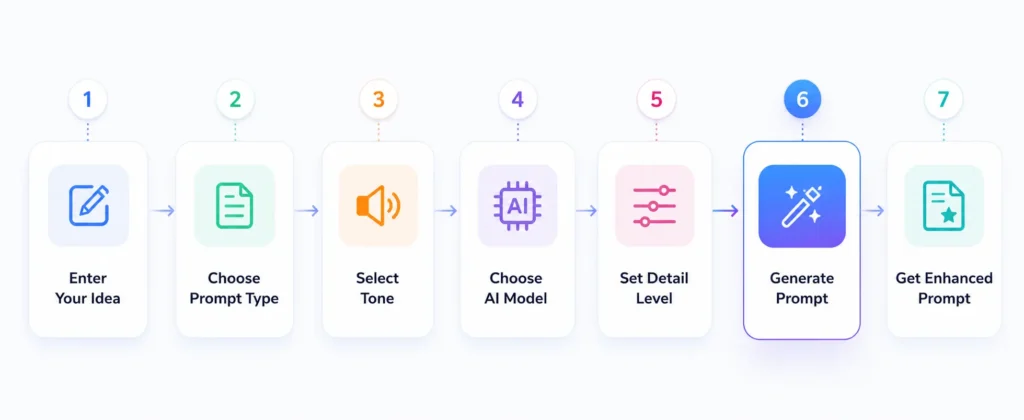
How to Use the Nano Banana Prompt Generator
Creating an optimized prompt takes only a few steps.
Describe Your Image
Start by explaining what you want to create. For example: “Create a premium black smartwatch advertisement for a modern technology brand.” You don’t need to know advanced prompt engineering terminology.
Choose a Visual Style
Select a visual style that best matches the purpose and aesthetic of your project, such as realistic, cinematic, 3D, cartoon, minimal, luxury, tech, or anime. Choosing a clear visual style helps guide the image generation toward a consistent appearance and ensures that the final result aligns with the desired creative direction and overall design.
Select the Image Size
Choose an aspect ratio that matches where and how the image will be used, such as 16:9 for website banners and videos, 1:1 for social media posts and profile images, 9:16 for vertical content, 4:5 for social media feeds, and 3:2 for standard photography. Google’s current Nano Banana 2 Lite documentation lists 14 supported aspect ratios, including 1:1, 3:2, 2:3, 4:3, 4:5, 5:4, 9:16, 16:9, and 21:9, giving creators flexibility to select the format that best suits their project and platform.
Choose the Camera Angle
Camera perspective can dramatically influence how the subject appears and how the viewer experiences the scene. Our generator supports options such as high-level angle, side angle, wide angle, over-the-shoulder view, top-down view, low angle, and extreme close-up. Selecting the right camera angle helps create the desired sense of depth, scale, focus, and visual impact.
Select Lighting
Lighting helps define the mood, depth, atmosphere, and overall visual character of the image. Our generator supports options such as natural lighting, cinematic lighting, soft lighting, strong lighting, studio lighting, backlighting, side lighting, neon lighting, golden lighting, dark luxury lighting, and futuristic lighting. Selecting the appropriate lighting style helps create the desired ambiance, enhance important details, and give the image a more realistic and visually appealing appearance.
Set Image Quality
You can specify the desired visual treatment and level of detail, such as high quality, ultra quality, realistic, cinematic, commercial, 4K, 8K, or fine details. Keep in mind that the actual output resolution depends on the Nano Banana model and the platform you are using. For example, Google’s documentation states that the original Nano Banana (Gemini 2.5 Flash Image) is optimized for 1024px generation, while Nano Banana 2 supports 4K generation, and Nano Banana 2 Lite targets 1K/1024px output.
Add Negative Instructions
If there are specific elements you want to avoid in the generated image, include them in the negative prompt area. Negative instructions can help reduce unwanted visual elements and improve the accuracy and consistency of the final result. Examples include no text, no people, no watermark, no clutter, no dark background, no unnecessary objects, and no distorted proportions.
Generate and Copy
Once you have selected your preferred settings, generate the optimized prompt and review the result to ensure it matches your intended visual style and requirements. You can then copy the final prompt and use it in your preferred Nano Banana or Gemini image-generation workflow to create the image.
The Anatomy of a Powerful Nano Banana Prompt
A strong image prompt isn’t simply a long paragraph. It should communicate the important visual decisions clearly. A powerful Nano Banana prompt combines clear instructions, visual context, and technical details to guide AI image generation with greater precision. Start by defining the subject and describe its appearance, position, action, and important characteristics. Next, explain the environment, including the location, background, architecture, surrounding objects, and time of day. Add composition and camera perspective, such as a close-up, wide shot, top-down view, or low angle. Specify lighting, color palette, textures, mood, and artistic style to establish the desired visual identity. For realistic images, include camera details such as lens type, focal length, depth of field, and focus. You can also define the aspect ratio, image quality, and realism level. Finally, use negative instructions to exclude unwanted elements such as text, watermarks, clutter, or distorted proportions. This structured approach creates more effective Gemini and Nano Banana image prompts.
Nano Banana Models Explained
Nano Banana is now a family of Gemini image-generation models rather than a single model. Google currently documents four models in the family.
Nano Banana 2 Lite
Nano Banana 2 Lite is designed for speed, efficiency, and high-volume image generation. Google describes it as the fastest and most cost-efficient model in the family, with a target of sub-2-second latency and 1K/1024 px output.
Nano Banana 2
Nano Banana 2, based on Gemini 3.1 Flash Image, is designed as a general-purpose AI image generation and editing model. Google highlights its high-fidelity image generation, faster editing, multiple reference image processing, strong subject consistency, 4K generation, and improved text rendering, making it suitable for creating detailed, realistic, and consistent visuals across a wide range of creative projects.
Nano Banana Pro
Nano Banana Pro, based on Gemini 3 Pro Image, is designed for complex visual tasks that require advanced creative control and precision. Google highlights capabilities such as studio-quality image generation, advanced image editing, accurate text rendering, real-world grounding, Google Search grounding, and up to 4K image generation, making it well suited for professional visuals, detailed compositions, and sophisticated image-editing workflows.
Original Nano Banana
The original Nano Banana is based on the Gemini 2.5 Flash Image. Google describes it as a high-speed image-generation model optimized for high-volume generation, conversational editing, and low-latency creative workflows. Its API documentation lists 65,536 input tokens and 32,768 output tokens, with image and text supported as inputs and image/text as outputs.
Nano Banana Prompts for Every Use Case
Product Photography
Create professional product images for:
Marketing Campaign
Generate prompts for:
Social Media Content
Create visual prompts for:
Fashion & Lifestyle
Generate:
Art & Illustration
Create prompts for:
Architecture & Interior Design
Generate visual concepts for:
Professional & Business Visuals
Create:
Nano Banana for Image Editing
Nano Banana isn’t limited to generating images from text. Google describes its Gemini image capabilities as supporting conversational image creation and editing, including workflows where users can provide images alongside text instructions.
You can create prompts for tasks such as
Change Background
Replace an existing background while keeping the primary subject.
Change Clothing or Style
Modify clothing, colors, or visual styling while preserving the main subject.
Combine Multiple Images
Create prompts that describe how multiple reference images should be combined into a new visual.
Preserve Important Details
For editing workflows, specify which elements should remain unchanged.
Apply Artistic Style
Transform an existing image into a different visual style while describing the desired results.
Google has specifically highlighted Nano Banana’s ability to maintain consistency when editing people and pets, blend photos, and apply styles from one image to another.
Professional Prompting Tips for Nano Banana
Describe the Subject First
Start with the main object, person, or scene before adding secondary details.
Specify the Composition
Don’t leave the framing entirely ambiguous when the position of the subject matters.
Describe Lighting
Mention whether the scene should be bright, dramatic, soft, cinematic, studio-lit, or naturally illuminated.
Use Precise Visual Language
Instead of “Make it beautiful.” Try: “Create a premium commercial product photograph with soft studio lighting, a clean neutral background, subtle reflections, and sharp product details.”
Separate Requirements
For complicated projects, organize your prompt into sections such as subject environment, composition, lighting, camera style, colors, quality, and constraints.
Refine Rather Than Rewrite
When an image is close to your desired result, change only the elements that need improvement. Google specifically promotes conversational creation and iterative editing as key capabilities of its Gemini image models
Why Detailed Nano Banana Prompts Matter
A short prompt can communicate the basic idea, but detailed instructions can communicate the creative direction. For example:
Basic: “Create a luxury perfume advertisement.”
More detailed: “Create a premium commercial photograph of a transparent glass perfume bottle on a polished black marble surface, surrounded by subtle gold accents, dramatic side lighting, a dark luxury background, a shallow depth of field, elegant reflections, centered composition, high-end beauty campaign aesthetic.”
The second version gives the image model substantially more information about the intended result.
Our image prompt generator helps users build this level of detail automatically instead of requiring them to write every component manually.
Why Choose Our Nano Banana Prompt Generator?
Free to Use
Create Nano Banana prompts without a paid subscription to our prompt generator.
No Sign-Up Required
Start creating prompts without creating an account.
Beginner Friendly
You don’t need to understand advanced image-prompt terminology.
Visual Controls
Choose style, aspect ratio, camera angle, lighting, quality, and negative instructions.
Text-Based Prompt
Describe your concept in natural language and let the generator structure it.
Image Generation
The tool focuses on visual details rather than generic text prompts.
Fast Prompt Creation
Turn an initial concept into a detailed image prompt in seconds.
Commercial Projects
Create prompts for products, advertising, branding, social media, websites, presentations, and creative campaigns.
Nano Banana Prompt Generator vs. Writing Prompts Manually
Writing image prompts manually requires you to remember multiple visual components. You may need to think about:
Our generator brings these choices into one workflow, making it easier to build a detailed prompt without starting from a blank page. Instead of repeatedly asking yourself, “What should I include?” you can describe your concept and use the available controls to build a more complete prompt.
Key Features
Visual Style Selection
Choose from styles such as realistic, cinematic, 3D, cartoon, minimal, luxury, tech, and anime.
Multiple Aspect Ratios
Generate prompts for common formats such as 16:9, 1:1, 9:16, 4:5, and 3:2.
Camera Angle Control
Choose side, wide, top-down, low-angle, over-the-shoulder, and extreme close-up angle.
Lighting Controls
Specify natural, cinematic, soft, strong, studio, back, side, neon, golden, dark luxury, bright, or futuristic lighting.
Quality Options
Select options such as high quality, ultra, realistic, cinematic, commercial, 4K, 8K, and fine details.
Negative Prompt Support
Add instructions describing elements you don’t want in the generated image.
500-Character Idea Input
Describe your initial concept in a concise input before the generator expands it into a structured visual prompt.
How to use Nano Banana Prompt Generator Guide
Frequently Asked Questions
Start Creating Better Nano Banana Prompts Today
Turn a simple visual idea into a detailed, professionally structured Nano Banana prompt in seconds. Whether you’re creating product photography, social media graphics, advertising campaigns, portraits, concept art, website visuals, or cinematic scenes, our generator helps you describe the subject, composition, style, lighting, camera perspective, colors, quality, and creative direction more precisely.
Google’s Nano Banana family continues to evolve, from the original Gemini 2.5 Flash Image model to Nano Banana 2, Nano Banana 2 Lite, and Nano Banana Pro.
Describe your idea → choose your visual settings → generate your prompt → copy it → create your image.
No advanced prompt-engineering experience required.